
How Hosted Trips Work
Hosted Trips allow you to turn an existing tour into a hosted experience for a specific audience or community.
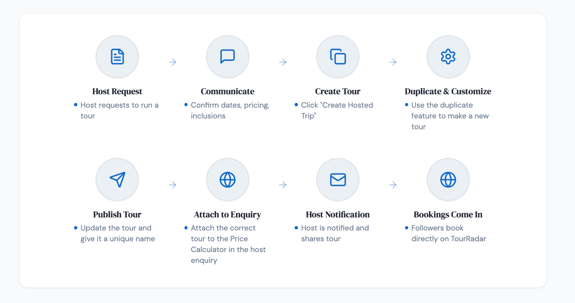
The process works as follows:
-
A host submits a Hosted Trip request
-
You confirm the tour details with the host
-
You duplicate the base tour in your Operator Dashboard using the ‘Duplicate Adventure’ button
-
You customize the hosted version of the tour
-
You publish the tour and update Price Calculator to the new hosted tour
-
The host receives confirmation and shares the tour with their audience
-
Travelers book the tour directly on TourRadar, similar to how they would book your other tours
Step-by-Step: Creating a Hosted Trip
1. Host Request
A host submits a request to run a tour with your company.
2. Communicate With the Host
Before creating the hosted trip, confirm the key details with the host. This ensures the tour meets the expectations of their audience.
Typical details to discuss include:
-
Travel dates
-
Group size expectations
-
Pricing & room types
-
Special experiences or activities
- Deadline to confirm minimum numbers
Once you agree on the details, you can proceed with creating the hosted tour.
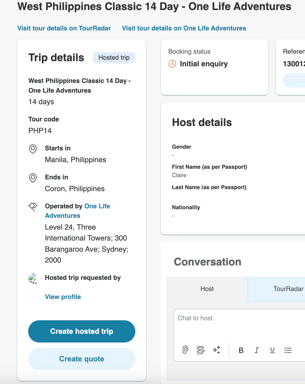
3. Click Create Hosted Trip
Open the request and click Create Hosted Trip.
This will take you directly to the selected tour inside your Operator Dashboard, where you can create a hosted version.
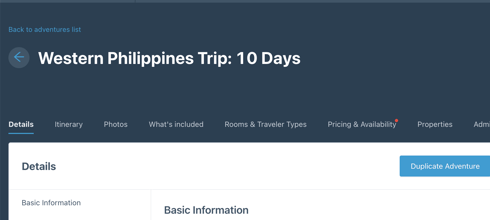
4. Duplicate the Tour
Click Duplicate to create a new version of the tour.
Duplicating the tour ensures that:
-
Your original tour remains unchanged
-
The hosted version can be fully customized
5. Customize and Publish the Tour
You can now update the hosted version of the tour as needed.
For example, you may:
-
Adjust the itinerary
-
Add exclusive activities
-
Modify inclusions or experiences
-
Link the correct cancellation policy
- Add the agreed departure date and pricing
Once everything is ready, publish the tour as you normally would.
💡 Pro Tip:
Give the hosted tour a specific name so it is easy to identify and promotes the host's brand.
Example: “Adventures through the Philippines — hosted by Alex”
6. Update the Price Calculator
After publishing the tour, make sure to:
-
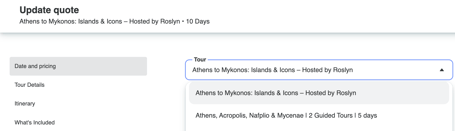
Open the enquiry with the host again & go to the price calculator
-
Change to the new hosted tour version
This step ensures the hosted tour is fully bookable and the host is now linked to the correct tour.
7. Host Notification
Once the tour is attached, the host will automatically receive confirmation that their hosted tour is ready to share
The host will update their profile and intro for the tour.
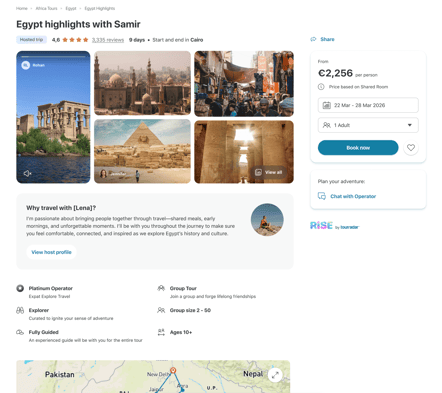
8. Host Shares the Tour
The host can now promote the tour by sharing the unique tour page with their audience.
Common channels include:
-
Social media
-
Email newsletters
-
Community groups
-
Personal websites
9. Travelers Book the Tour
Travelers can book the hosted tour directly on TourRadar.
All bookings will appear in your Operator Dashboard. Hosted trips are managed exactly like regular bookings on TourRadar.
Best Practices for Successful Hosted Trips
Create a unique experience
Hosts often want to offer something special to their audience. Consider adding:
-
Exclusive meetups
-
Special activities
-
Community-focused experiences
Keep the tour name clear
Including the host's name in the tour title helps create trust and excitement.
Example:
“Patagonia Adventure — Hosted by Maria”
Confirm pricing for the room types before publishing
So customers can book easily as usual
Frequently Asked Questions
Does the hosted tour replace my existing tour?
No. Hosted trips are created by duplicating your existing tour, so your original tour remains unchanged.
Can I edit the hosted tour after publishing?
Yes. You can update the hosted tour just like any other tour in your Operator Dashboard.
If you make edits afterwards and people have already booked, you must inform them directly about any changes (similar to the usual process when the tour changes).
How do bookings work?
Bookings work the same as regular TourRadar bookings. Travelers book through the tour page, and you manage the booking through your Operator Dashboard.
Who promotes the tour?
The host promotes the tour to their community, while TourRadar handles the booking process.
What do I do after the tour is finished?
Encourage the customers to leave reviews, Moments and share their experiences - these help with regular bookings and visibility. Please do not delete the Hosted Trip from the Dashboard for at least 6 months as the host may use this to promote more trips.