---
title: How to Integrate Our Widgets Into Your WordPress Site Using the Link option?
description: Please follow the steps below on how to integrate our widgets directly onto your WordPress website.
---
[Skip to content](https://help.tourradar.com/en/operators/how-to-integrate-our-widgets-into-your-wordpress-site-using-the-link-option#main-content)
English
Show submenu for translations
[](https://www.tourradar.com/)
Open main navigation
Close main navigation
- English
Show submenu for translations
- [Operator Dashboard Login](https://operators.tourradar.com/login)
[Operator Dashboard Login](https://operators.tourradar.com/login)
Hello. How can we help you?
- There are no suggestions because the search field is empty.
1. [Operator Help Center - TourRadar](https://help.tourradar.com/en/operators?hsLang=en)
2. [Direct Booking Solution](https://help.tourradar.com/en/operators/direct-booking-solution?hsLang=en)
3. [Widgets](https://help.tourradar.com/en/operators/direct-booking-solution?hsLang=en#widgets)
# How to Integrate Our Widgets Into Your WordPress Site Using the Link option?
## Please follow the steps below on how to integrate our widgets directly onto your WordPress website.
### Widget Integration Steps
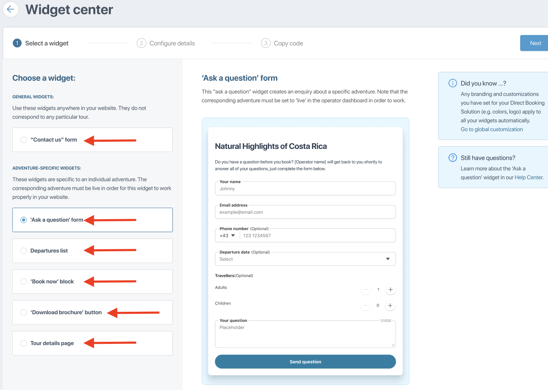
1. Log into your Operator Dashboard, click on the 'more' tab, then 'Direct Booking Solution', and select 'Widget Center'.
2. Here you can select the widget you want to integrate. After selecting your specific widget, you can find detailed steps for each widget in the linked articles at the bottom of this page [here](https://help.tourradar.com/en/operators/what-are-widgets-and-how-do-they-work?hsLang=en).
****
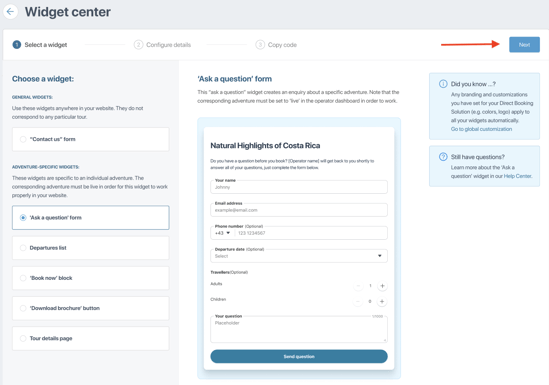
3. Once clicked, you will see a preview of the widget and how it will appear on your website, select 'Next' to proceed to the customization of your widget.
4. Customize the widget to fit your preferences. There are unique customization options for both general widgets and adventure-specific widgets.
5. You can click the 'Preview widget' button, to see if you are satisfied with the widget.
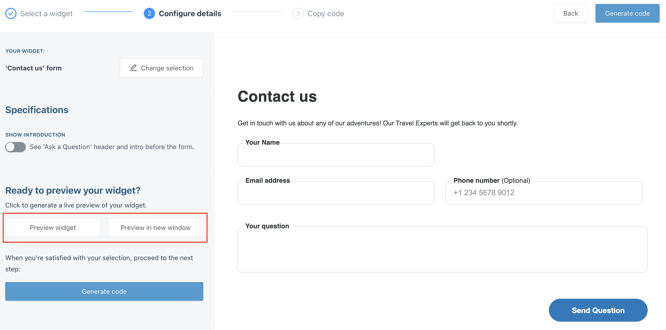
6\. After you have finished customizing your widget, you will need to select 'Generate code' to get the code to integrate your widget. Clicking 'Generate code' will automatically take you to the next step of the integration process.
7\. Integrate your widget using the steps below for the link option.
### **How to Integrate a Widget Using the Link Option in WordPress**
Please be aware that the link option is specifically designed for the Contact Us, Ask a Question and Book Now Block. If you wish to utilize the other available [TourRadar Widgets](https://help.tourradar.com/en/operators/what-are-widgets-and-how-do-they-work?hsLang=en), you can opt for the embedding option instead. Further details on this option can be found [here](https://help.tourradar.com/en/operators/how-to-integrate-our-widgets-using-embed-option?hsLang=en).
For more information regarding WordPress, see their website [here.](https://wordpress.com/)
1. Create the widget using the Link option. You will need to open your WordPress page in a different tab.
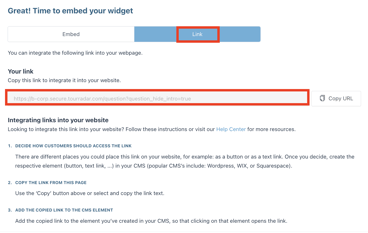
2. Go to WordPress and edit the website page where you want the widget to appear, then click on the **“+” sign.
**
3. Click on Custom HTML.
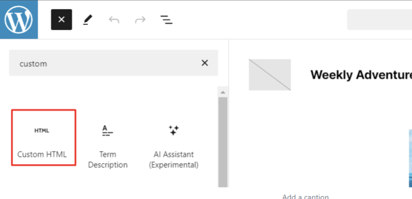
4. If you want the widget to be opened on the same page, paste the following HTML code by replacing **YourLink** with the link you received when you created the widget in your Operator Dashboard:
\Ask a question\
\------------------------------------------------------------------------------------------------
\- Make sure you also change the anchor text in the HTML code to match the widget you are linking:
\>Ask a question\
\>Contact Us\
\>Book Now\
5. If you want the widget to be opened in a new tab paste the following HTML code by replacing **YourLink** with the link you received when you created the widget in your Operator Dashboard:
\Ask a question\
\------------------------------------------------------------------------------------------------
\- Make sure you also change the anchor text in the HTML code to match the widget you are linking:
\>Ask a question\
\>Contact Us\
\>Book Now\
6\. If you want the widget to be opened as a popup paste the following HTML code by replacing **YourLink** with the link you received when you created the widget in your Operator Dashboard:
\Ask a question\
\------------------------------------------------------------------------------------------------
\- Make sure you also change the anchor text in the HTML code to match the widget you are linking:
\>Ask a question\
\>Contact Us\
\>Book Now\
7. Save the changes, refresh the website and the widget should appear.
If you are having problems integrating your TourRadar Widget(s), please email us at [partner-solutions@tourradar.com](mailto:partner-solutions@tourradar.com)with more information about the situation.
- [What's New on TourRadar](https://help.tourradar.com/en/operators/whats-new-on-tourradar?hsLang=en)
- [TourRadar Training](https://help.tourradar.com/en/operators/tourradar-training?hsLang=en)
- [Operator Dashboard](https://help.tourradar.com/en/operators/operator-dashboard?hsLang=en#main-content)
- [Manage Profile](https://help.tourradar.com/en/operators/operator-dashboard?hsLang=en#manage-profile)
- [Manage Tours](https://help.tourradar.com/en/operators/operator-dashboard?hsLang=en#manage-tours)
- [Reviews](https://help.tourradar.com/en/operators/operator-dashboard?hsLang=en#reviews)
- [Promotions](https://help.tourradar.com/en/operators/operator-dashboard?hsLang=en#promotions)
- [Growth](https://help.tourradar.com/en/operators/operator-dashboard?hsLang=en#growth)
- [Reports](https://help.tourradar.com/en/operators/operator-dashboard?hsLang=en#reports)
- [Data Security and Privacy](https://help.tourradar.com/en/operators/operator-dashboard?hsLang=en#data-security-and-privacy)
- [Enquiries & Bookings](https://help.tourradar.com/en/operators/enquiries-bookings?hsLang=en#main-content)
- [Understanding the Booking Conversation Page (BCP)](https://help.tourradar.com/en/operators/enquiries-bookings?hsLang=en#understanding-the-booking-conversation-page-bcp)
- [Managing your Enquiries & Bookings](https://help.tourradar.com/en/operators/enquiries-bookings?hsLang=en#managing-your-enquiries-bookings)
- [Private Tours](https://help.tourradar.com/en/operators/private-tours?hsLang=en)
- [Optimisation](https://help.tourradar.com/en/operators/optimisation?hsLang=en)
- [TourRadar Payments](https://help.tourradar.com/en/operators/tourradar-payments?hsLang=en#main-content)
- [Invoicing](https://help.tourradar.com/en/operators/tourradar-payments?hsLang=en#invoicing)
- [Remittance](https://help.tourradar.com/en/operators/tourradar-payments?hsLang=en#remittance)
- [Awards & Certifications](https://help.tourradar.com/en/operators/awards-certifications?hsLang=en)
- [Direct Booking Solution](https://help.tourradar.com/en/operators/direct-booking-solution?hsLang=en#main-content)
- [General Information](https://help.tourradar.com/en/operators/direct-booking-solution?hsLang=en#general-information)
- [How to utilize the Direct Booking Solution](https://help.tourradar.com/en/operators/direct-booking-solution?hsLang=en#how-to-utilize-the-direct-booking-solution)
- [Widgets](https://help.tourradar.com/en/operators/direct-booking-solution?hsLang=en#widgets)
- [Payments & Fees](https://help.tourradar.com/en/operators/direct-booking-solution?hsLang=en#payments-fees)
- [Payment Link Tool](https://help.tourradar.com/en/operators/payment-link-tool?hsLang=en#main-content)
- [General](https://help.tourradar.com/en/operators/payment-link-tool?hsLang=en#general)
- [Payment & Fees](https://help.tourradar.com/en/operators/payment-link-tool?hsLang=en#payment-fees)
- [Join TourRadar](https://help.tourradar.com/en/operators/join-tourradar?hsLang=en)
- [Hosted Trips](https://help.tourradar.com/en/operators/hosted-trips?hsLang=en)
[](https://www.tourradar.com)
Operator Help Center - TourRadar
Copyright © 2026, TourRadar
```json
{
"@context" : "https://schema.org",
"@type" : "VideoObject",
"contentUrl" : "https://5742163.fs1.hubspotusercontent-na1.net/hubfs/5742163/How%20to%20add%20widgets%20to%20WordPress%20using%20link%20-%20open%20in%20the%20same%20page.mp4",
"dateModified" : "2024-03-19T21:23:44.808Z",
"duration" : "PT35S",
"height" : 1028,
"name" : "How to add widgets to WordPress using link - open in the same page",
"thumbnailUrl" : "https://5742163.fs1.hubspotusercontent-na1.net/hubfs/5742163/How%20to%20add%20widgets%20to%20WordPress%20using%20link%20-%20open%20in%20the%20same%20page.mp4/medium.jpg",
"uploadDate" : "2024-03-19T21:23:44.803Z",
"width" : 1908
}
```
```json
{
"@context" : "https://schema.org",
"@type" : "VideoObject",
"contentUrl" : "https://5742163.fs1.hubspotusercontent-na1.net/hubfs/5742163/How%20to%20add%20widgets%20to%20WordPress%20using%20link%20-%20open%20in%20new%20tab.mp4",
"dateModified" : "2024-03-19T21:26:16.317Z",
"duration" : "PT20S",
"height" : 1020,
"name" : "How to add widgets to WordPress using link - open in new tab",
"thumbnailUrl" : "https://5742163.fs1.hubspotusercontent-na1.net/hubfs/5742163/How%20to%20add%20widgets%20to%20WordPress%20using%20link%20-%20open%20in%20new%20tab.mp4/medium.jpg",
"uploadDate" : "2024-03-19T21:26:16.312Z",
"width" : 1906
}
```
```json
{
"@context" : "https://schema.org",
"@type" : "VideoObject",
"contentUrl" : "https://5742163.fs1.hubspotusercontent-na1.net/hubfs/5742163/How%20to%20add%20widgets%20to%20WordPress%20using%20link%20-%20open%20in%20a%20popup.mp4",
"dateModified" : "2024-03-19T21:27:53.977Z",
"duration" : "PT21S",
"height" : 1030,
"name" : "How to add widgets to WordPress using link - open in a popup",
"thumbnailUrl" : "https://5742163.fs1.hubspotusercontent-na1.net/hubfs/5742163/How%20to%20add%20widgets%20to%20WordPress%20using%20link%20-%20open%20in%20a%20popup.mp4/medium.jpg",
"uploadDate" : "2024-03-19T21:27:53.972Z",
"width" : 1906
}
```