
Overview
The TourRadar Adventure Schema API lets you create and update your tours on TourRadar directly from your own system, so you no longer maintain them by hand in the Operator Dashboard.
The API covers tour content, prices and availability, sent from your system to TourRadar. It does not handle bookings: bookings made on TourRadar are not sent to your system through this API.
This guide is for:
- Operators connecting their own booking or content system.
- Reservation system providers connecting on behalf of one or more operators.
- Agencies or development partners building the integration for an operator.
This guide covers the setup steps around the API: getting credentials, linking existing tours, testing and going live. The technical reference (endpoints, fields, payload examples) is in the API specification.
Before you start
You need a live TourRadar operator account with access to the Operator Dashboard. API users can only be added once your account is live; if it is still inactive, contact your TourRadar account manager first. If a reservation system or partner builds the integration for you, decide who will set up the API user (see Step 1).
The integration takes five steps:
- Get your API credentials – create an API user in the Operator Dashboard.
- Link existing tours – only if you already have tours on TourRadar that were created manually. Do this before your first upload.
- Build the integration – your developer connects your system using the API specification.
- Test – send a few tours and check them in the Operator Dashboard.
- Go live and keep tours updated – set each new tour live once in the Operator Dashboard, then keep sending updates.
Step 1 – Get your API credentials
The API uses the username (email) and password of a dedicated user in your Operator Dashboard.
Create a separate user for the integration rather than using a personal login.
|
Your situation |
Who creates the API user |
|---|---|
|
You connect your own system |
You, in your Operator Dashboard. |
|
A reservation system or partner connects for you |
Either you create the API user and share the login details with them, or you create an Operator Dashboard user for them, and they set up the API user themselves. |
To create the API user:
- Log in to the Operator Dashboard.
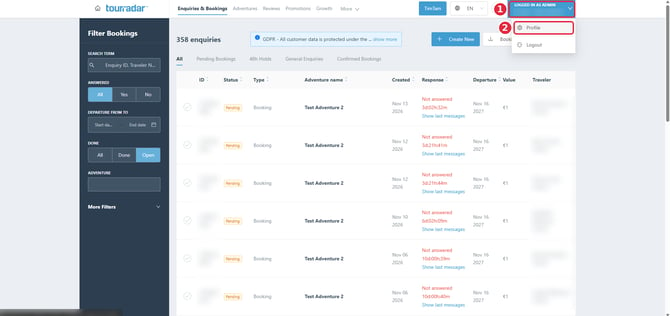
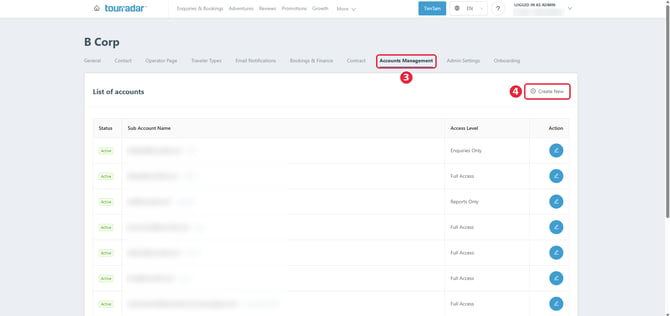
- Click your username (top right) → Profile → Accounts Management → Create New.
- Fill in the fields:
- Access Level: any level works.
- Email Address: this becomes the API username. Use a real email inbox so you can receive password reset emails and login codes, e.g.
api@your-company.com. - Password: a strong password.
- Contact name: something descriptive, e.g. API user for Adventure Schema.
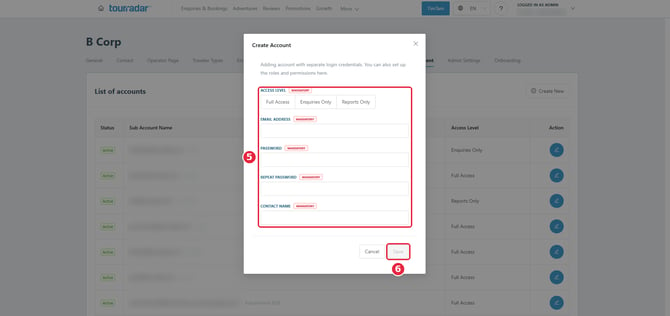
Click Save and share the email address and password with the developer who builds the integration.
Keep these details safe. They give access to creating and updating your tours on TourRadar, and to future features for managing your tour details, so handle them with care.
Reservation systems connecting several operators: you need a separate API user for each operator.
Step 2 – Link your existing tours (manual → imported)
Skip this step if you have no tours on TourRadar yet.
If your tours were created manually in the Operator Dashboard, link each one to your system so that the API updates it instead of creating a new tour. TourRadar matches tours by your own tour code: the code you send in the API request must equal Your Adventure Code on the tour in the Operator Dashboard.
- Log in to the Operator Dashboard.
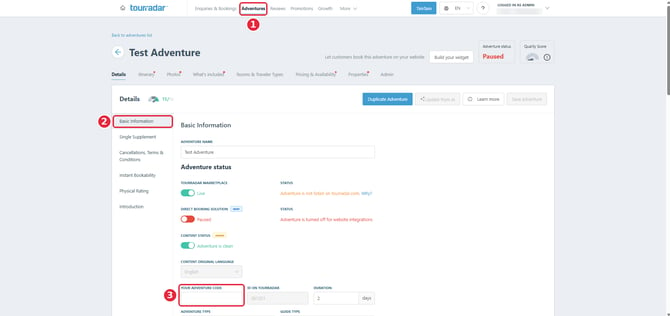
- Go to Adventures and open the tour you want to link.
- In Basic Information, enter your tour code in Your Adventure Code.
- Save, and repeat for every tour that should be updated via the API.
- Start sending updates through the API, using the same code for each tour.
Tour codes: get them right before your first upload.
- Add your codes before the first upload. A tour sent with a code that isn’t in the Operator Dashboard is created as a new tour, so you end up with a duplicate.
- Use a different code for each tour. If two tours share a code, updates for one land on the other, e.g. departures and prices show on the wrong tour.
- The code must match exactly what your system sends.
Step 3 – Build the integration (for your developer)
Your developer or reservation system builds the connection using the API specification, which has all endpoints, fields and examples. A few points the specification doesn't make obvious:
- Login: the integration logs in with the API user's email and password from Step 1 at
https://restapi.tourradar.com/v2/auth/loginand receives an access token. The token expires, so the integration must log in again regularly. - Operator ID: the login response contains your TourRadar operator ID (
user.operator_id), which is needed in the upload URL. - One request per tour, identified by your own tour code. Use the same code every time you update that tour.
- Go-live fields:
budget,physical_rating,group_typeandguide_typearen't needed to create a tour, but must be filled before it can be set live. The specification marks them Required for go-live. - Processing time: uploads are processed every 10–15 minutes. A successful response means the upload was accepted, not that the tour is already updated.
- Tour variations: versions of the same trip (e.g. different lengths or start cities) can be grouped with the
groupandtagsfields. See Group component in the specification. - Languages: text fields are sent per language key (e.g.
en_US,de_DE). Double-check that each text is written in the language of its key, otherwise travellers see it in the wrong language. Languages you don't send are translated automatically. - Ships (river cruises only):
transportNamesandtransportCodesare only for ships on river cruise tours. TourRadar creates the ships manually, so contact us before you send them. Ships are matched by name, sotransportNamesmust match the ship name on TourRadar exactly.
Step 4 – Test your integration
You can test safely with your live account: new tours are always created in paused (draft) mode and aren't visible to travellers until you set them live.
Check a payload without changing anything: send the same request to /validate instead of /queuefile. It returns validation errors but doesn't create or update the tour.
- Send 2–3 tours that cover your different setups (e.g. one with accommodation options, one with extras or promotions).
- Wait 10–15 minutes for processing.
- Open Adventures in the Operator Dashboard and check each tour: name, itinerary, prices per currency, departures and availability.
- Change something in your system (e.g. a price or the availability of one date), send the tour again, and check that the change arrives.
- When everything looks right, send the rest of your tours.
If a tour doesn't appear, check the API response for errors. If the request was accepted (201) but the tour still doesn't show after 30 minutes, email operator.integrations@tourradar.com with your operator ID, the tour code and the time you sent it.
There is currently no separate staging environment, so test with your live account as described above.
Step 5 – Go live and keep your tours up to date
New tours are always created paused. Uploading a tour doesn’t publish it. Set each new tour live once in the Operator Dashboard, as described below.
Once a tour meets all content requirements below, set it live once in the Operator Dashboard: open the tour, change Tour Status to Live in the Details section, and click Save Tour. You or a partner with access to your Operator Dashboard can do this:
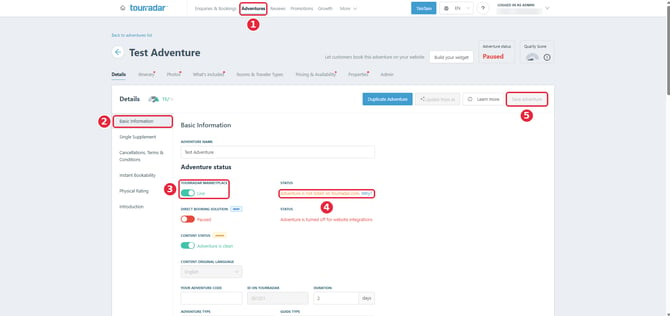
Also see: How to edit the tour status.
Content requirements for going live:
- Your operator account is live and active on TourRadar
- Future departures with prices and availability
- A day-by-day itinerary that names real places (locations are taken from it)
- At least 5 images, each at least 1024 x 768 px
- Group type, guide type, physical rating and budget
- A link to the tour on your website
- Detailed inclusions (what’s included and what isn’t)
If a required item is missing, the status next to the toggle shows Adventure is not listed on tourradar.com. Click Why? to see what’s missing.
Good content also improves your tour’s Quality Score: see What is the Quality Score and how does it work?
Keeping tours current. Once a tour is live, every upload updates it automatically. Updates cover both the tour content (itinerary, inclusions, accommodation options, images and descriptions) and its availability (departure dates, prices and seats available). Send a tour again whenever any of this changes in your system. Many operators send daily updates; send more often if your prices or availability change frequently.
Always send the full tour. Each upload replaces the tour's content. Fields you leave out are treated as empty. See the FAQ below.
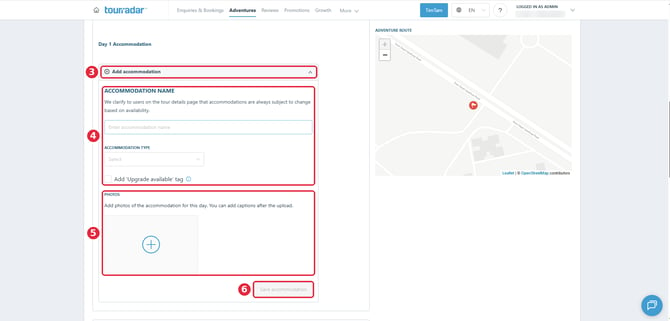
Exception: day-by-day accommodation. Structured accommodation details (where travellers stay each night) are often not available via imports. If your upload contains no accommodation details in the itinerary, you can add them manually in the Operator Dashboard, including accommodation images, and they are kept on future uploads. If your upload does include accommodation details, it replaces the manual ones.
What TourRadar sets automatically
TourRadar derives these from your tour content, so you don't need to send them:
- Locations (cities, countries): from the itinerary day titles and descriptions. See the FAQ.
- Adventure style: from the itinerary.
- Activities and traveller types (e.g. couples, famileies, solo travellers): from the tour content.
- Locations (cities, countries): from the itinerary day titles and descriptions, re-extracted whenever the itinerary changes. See the FAQ.
What you set in the Operator Dashboard
These are set in the Operator Dashboard, and uploads don't overwrite them:
- Food and diet options (e.g. vegetarian, vegan, halal, kosher): under What's included → Meals.
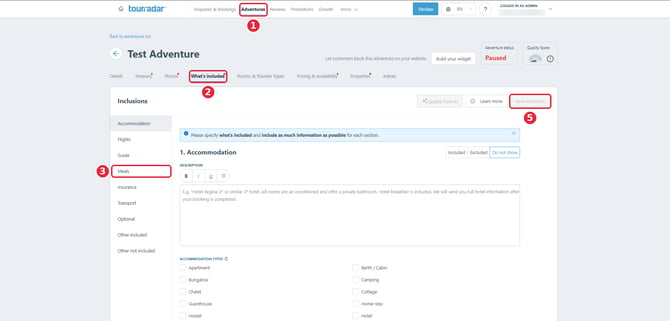
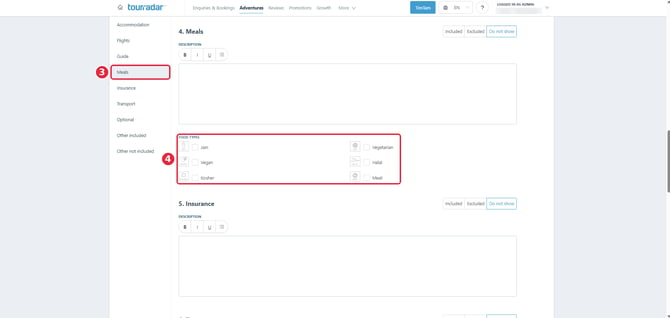
- Day-by-day accommodation, if your upload contains none (see Step 5).
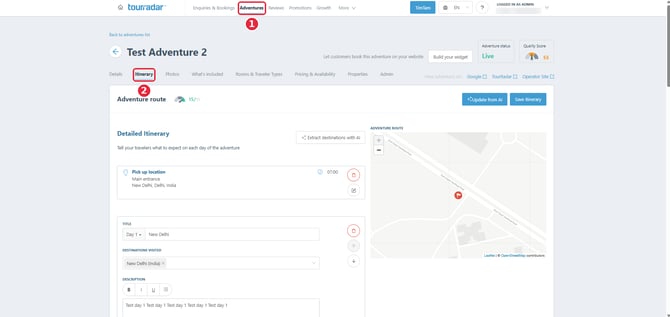
- Tour status: set each new tour live once (see Step 5).
Frequently Asked Questions
Can I send only date and availability updates, or does it have to be the full tour every time? Always send the full tour. Each upload replaces the tour's content, and fields you leave out are treated as empty. Sending only departures could, for example, remove your itinerary.
Do I need to send the locations (cities, countries) of my itinerary?
No. The locations field in the itinerary is deprecated and ignored. TourRadar extracts locations automatically from the itinerary day titles and descriptions, and updates them whenever the itinerary changes. You can adjust a tour’s locations manually in the Operator Dashboard if needed, under Itinerary → Destinations visited for each day.
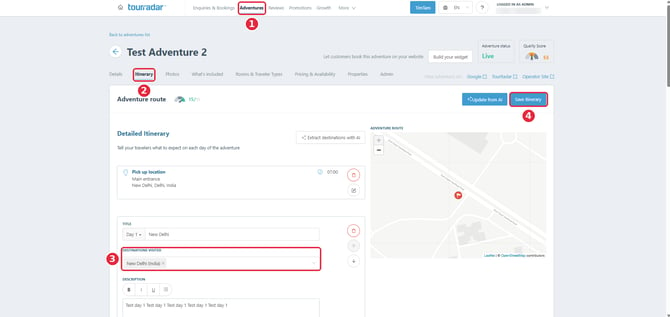
Your manual changes are kept as long as the itinerary doesn’t change. When an upload changes the itinerary, the extraction runs again and may override your manual edits, so check the locations after itinerary changes.
Is there a way to retrieve the tours I've already sent? Not through the API at the moment. You can see all your tours, including imported ones, under Adventures in the Operator Dashboard. We recommend keeping your own system as the source of truth.
How do I delete a tour? There is no delete endpoint. To stop selling a tour, you can:
- Pause it in the Operator Dashboard (set Tour Status to Paused).
- Close all departures by sending them with
departure_typeset toclosed. - Set availability to 0 for all departures.
Tour discontinued for good? Pause it. If a tour will no longer run in the future, pause it in the Operator Dashboard. Don’t just close its departures or set availability to 0: those options are meant for temporary changes, and the tour would otherwise stay in your inventory as an active tour without bookable dates.
Do tours go live automatically after I upload them? No. New tours are always created in paused (draft) mode, and you (or a partner with access to your Operator Dashboard) set each one live once in the Operator Dashboard. This lets you quality-check each new tour in the Operator Dashboard first (itinerary, prices, departures, images and descriptions) and fix anything before travellers see it. After that, updates are applied to the live tour automatically.
Do you have a staging environment? How can I test? Not at the moment. You can test safely with your live account, because new tours stay paused until you set them live. See Step 4.
How long until my changes show? Uploads are processed every 10–15 minutes. Then the change is visible in the Operator Dashboard and, for live tours, on TourRadar.
Can I still edit imported tours in the Operator Dashboard? Yes, but any field you send through the API is overwritten with your system's data at the next upload. Make lasting changes in your own system. One exception is day-by-day accommodation, as this data is often not available via imports: if your system doesn't send accommodation details in the itinerary, you can add the day-by-day accommodation manually in the Operator Dashboard, and it is kept on future uploads. If your upload does include accommodation details, they replace the manual ones.
Do I need to send the locations (cities, countries) of my itinerary? No. The locations field in the itinerary is deprecated and ignored. TourRadar extracts locations automatically from the itinerary day titles and descriptions, and updates them whenever the itinerary changes. You can adjust a tour's locations manually in the Operator Dashboard if needed. Your manual changes are kept as long as the itinerary doesn't change.
Can I send images of the accommodations? Not at the moment. The API accepts images for the tour as a whole, but not for individual accommodations in the itinerary. You can add accommodation images manually in the Operator Dashboard as part of the day-by-day accommodation details. They follow the same rule as the manual accommodation details: they are kept on future uploads as long as your upload contains no accommodation details (see Step 5).
What happens to images I no longer send? They are not removed automatically. If you want old images removed, email operator.integrations@tourradar.com with the tour code. Images added manually in the Operator Dashboard are never removed by an upload; you can delete them there yourself.
How do I offer a single supplement? Send it as an accommodation addon with beds_number set to 1 and is_shared set to 0, e.g. named Single Room. Its price is the full price of the single room, not only the supplement. See use case example A in the API specification.
I already have tours on TourRadar. Will the API create duplicates? Only if the codes don't match. Add your tour codes to the existing tours before your first upload (Step 2).
Where do I find my operator ID? In the response of the login request, under user.operator_id.
I'm a reservation system working with several operators. Can I use one login? No. Each operator needs its own API user, created in that operator's Operator Dashboard account (Step 1).
Is there an API to receive bookings in my system?
Not at the moment. The Adventure Schema API only covers tour content, prices and availability. TourRadar does have booking integrations with popular reservation systems such as Bokun, TourCMS and Rezdy, so if you use one of them, ask us about connecting it. If you’re interested in a booking integration, email operator.integrations@tourradar.com.
Getting help
- Technical reference: Adventure Schema API specification
- Questions about the integration: operator.integrations@tourradar.com
- Something isn't updating: email the same address with your operator ID, the tour code and the time of the upload.