
In order to edit your 'Tour Route Map' log in to your Operator Dashboard. It will automatically take you to the Tours Section. Select the tour you wish to edit your 'Tour Route Map' on and select the second tab 'Itinerary.'
TourRadar uses AI to automatically build accurate, day-by-day maps from your itinerary descriptions — helping travelers understand your adventure at a glance and improving your visibility in location-based searches.
The map is there to show the specific route for each tour. To edit the route:
- Sign in to the Operator Dashboard
- Go to the 'Tours' tab at the top of the screen, select the tour you wish to edit
- Choose the 'Itinerary' section
From here, you have two options:
Option 1: Automated destination extraction
As soon as you have the itinerary description filled, you can use the "Extract destinations with AI" button to automatically generate and assign the destinations to each itinerary day as shown below:
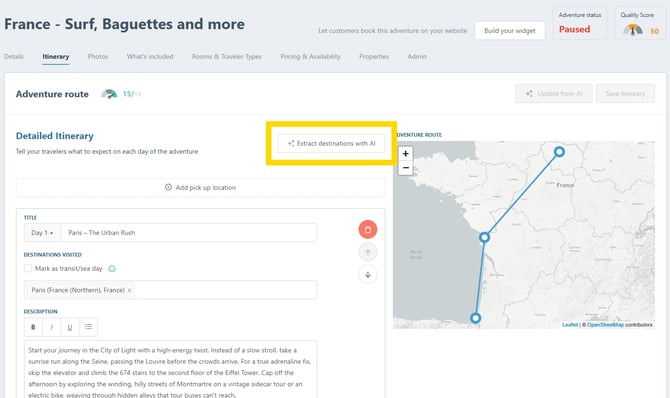
❗Note that it can take up to 40 seconds until the extraction is complete.
The system is also designed to handle edge cases appropriately — for example, it recognizes transit days (like days at sea) and flags them as "no-location" days so your map doesn't get cluttered with inaccurate pins. The AI relies on the content in your itinerary to extract locations. The more specific and descriptive each day is, the more accurate your map will be.
Tips for better location extraction:
- Name specific cities, towns, landmarks, and attractions in each day's description
- Avoid vague language like "travel day" without mentioning where you're travelling to or from
- Include the full name of locations where possible (e.g. "Queenstown, New Zealand" rather than just "Queenstown")
My map doesn't look right — what should I do? First, check that your itinerary descriptions clearly mention the locations for each day. Once updated, use the "Refresh map from itinerary" button in your Operator Dashboard to trigger a new extraction.
Does this happen automatically when I update my itinerary? For imported operators, AI extraction runs automatically when your itinerary is updated. For manual operators, you'll need to use the "Extract destinations with AI" button to trigger an update after making changes.
What if a location isn't being recognised? If the AI can't find a location in our database, it logs it so our team can review and add it over time. In the meantime, try using a more widely recognised place name or a nearby city in your description.
Can I flag a day that has no specific location? Yes — if a day doesn't have a physical location (e.g. a full day at sea or a long travel day), you can flag it as a "no-location" day to keep your map clean and accurate.
Option 2: Manually adding destinations
You can also manually add locations to each itinerary day by starting to type the location's name in the edit field as shown below. Simply select the destination to add it to the day. Repeat this action until you find all destinations your adventure will visit on this day.
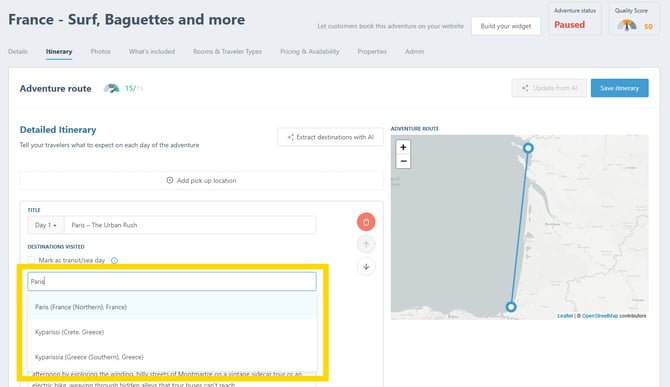
-
If a certain destination doesn't show up for some reason simply email the Business Development Team at bdms@tourradar.com
- If a trip only has one destination, enter the same city name twice in order to show the start and end city on the map