
Set up your room types under the Room & Traveler Types tab so they're consistent across all your tours and departures. This helps travelers easily choose the right room when booking.
Step-by-Step Instructions:
- Go to your Operator Dashboard
- Select the adventure you want to update
- Open Room & Traveler Types tab
- Scroll down to Room Types
- Click Create New to add a room type, or click the pen icon to edit an existing one
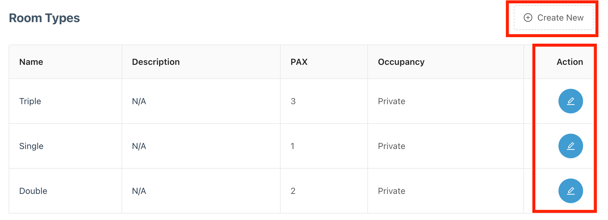
Instead of typing a name, answer a few questions and TourRadar builds a standard, traveler-friendly name for you.
To create or edit a room, fill in:
- Number of Guests (mandatory)
- Bed Setup (2-guest rooms only): Choose Double, Twin, or Double or Twin. For other room sizes, the name is generated automatically (e.g. Single, Triple, Quadruple).
- Room Sharing (mandatory): choose Private or Shared:
Private: The room is reserved exclusively for your party and is not shared with other travellers.
Examples:
- Solo traveller → has the room entirely to themselves.
- Two friends travelling together → share the room with each other only.
- Someone travelling in a group who wants their own room → can select a Single Room option, if available.
Shared: The room may be shared with other travellers, typically matching solo travellers of the same gender. Travellers already travelling together can also book a shared room.
Examples:
- Solo traveller → may be paired with another solo traveller of the same gender.
- Two friends → can share together, depending on availability.
- Multi-person/dorm room → may be shared with their group or other travellers, depending on capacity.
Add More Detail (optional):
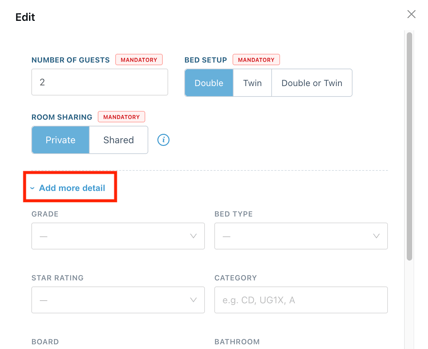
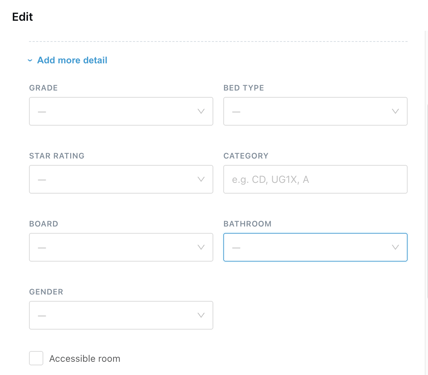
Click "Add more detail" to expand a few extra fields. These are optional, but each one you select is added to the generated room name, so only fill in what's relevant to this room:
- Room grade
- Bed type
- Star rating
- Board
- Bathroom type
- Gender restrictions
- "Accessible Room": tick if the room is wheelchair/accessible-friendly
Review Your Room Name
As you make your selections, your room name is automatically created and updated under “This is what travellers see.”
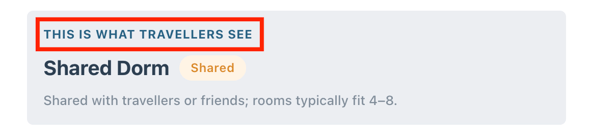
You can also add a short description of up to 60 characters for useful information that isn't already included in the room name.
Use the generated name whenever possible to keep room names consistent and easy for travellers to understand. If it doesn’t accurately describe your room, click Edit to add a custom name. TourRadar may suggest the generated option if your custom name matches a standard room type.
Adding Rooms to Your Departure Dates
Once you've created your room types, you'll need to add them to your departure dates so travellers can select them when booking.
- Open the adventure and go to Pricing & Availability
- Select the checkbox next to the departure(s) you want to update
- Click Edit Departures → Edit Pricing
- Select the room type(s) you want to offer
- Enter the price per person
- Click Save Departures
Important Notes:
- Room prices are per person. For example, a Single Room will usually have a higher per-person price than a Double Room shared by two travellers.
- Room types can't currently be deleted. If you no longer offer a room type, simply don't assign it to your departures.
- No accommodation included? Create a room type named Tour Only and add a short description explaining that accommodation isn't included.